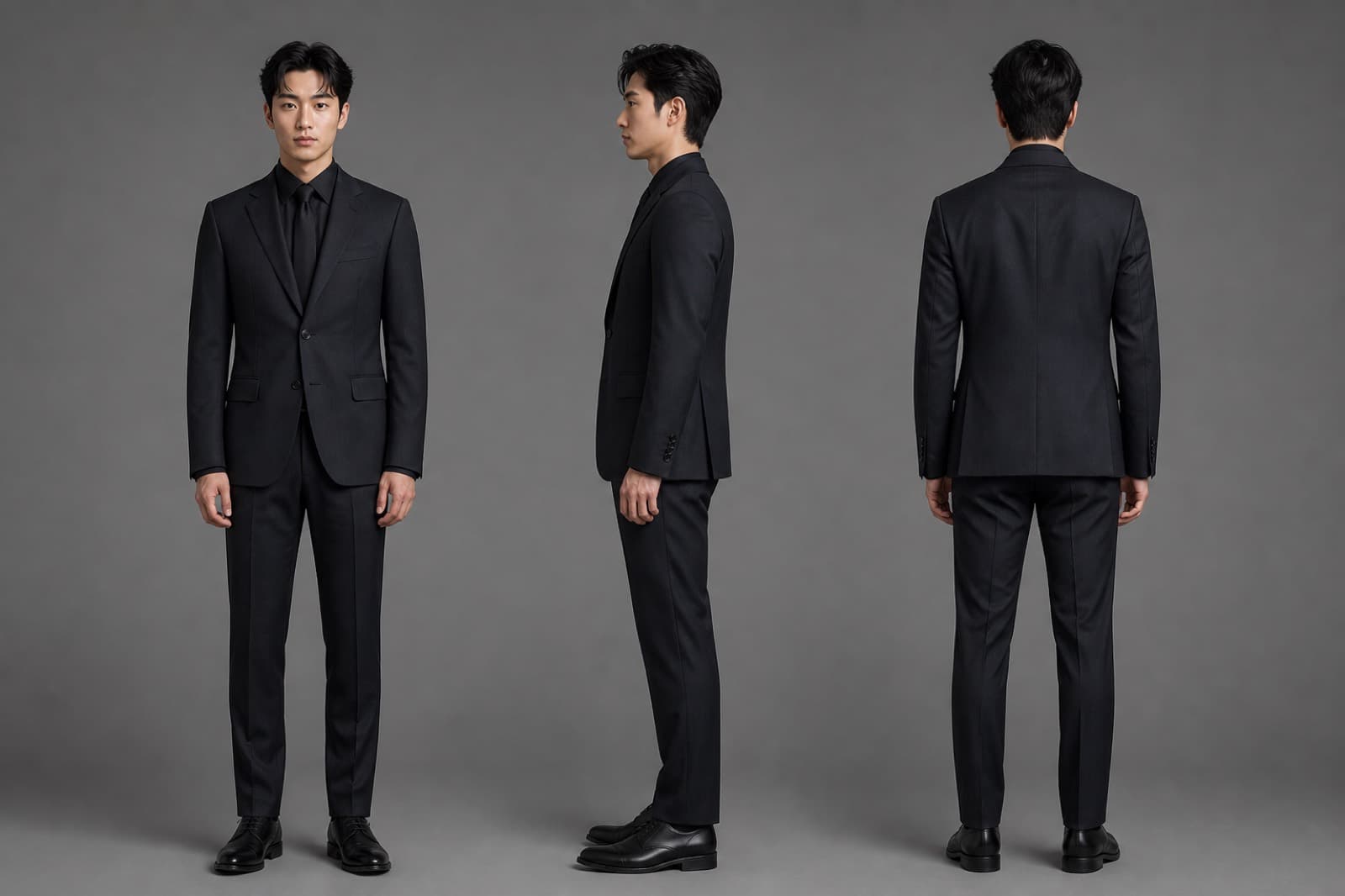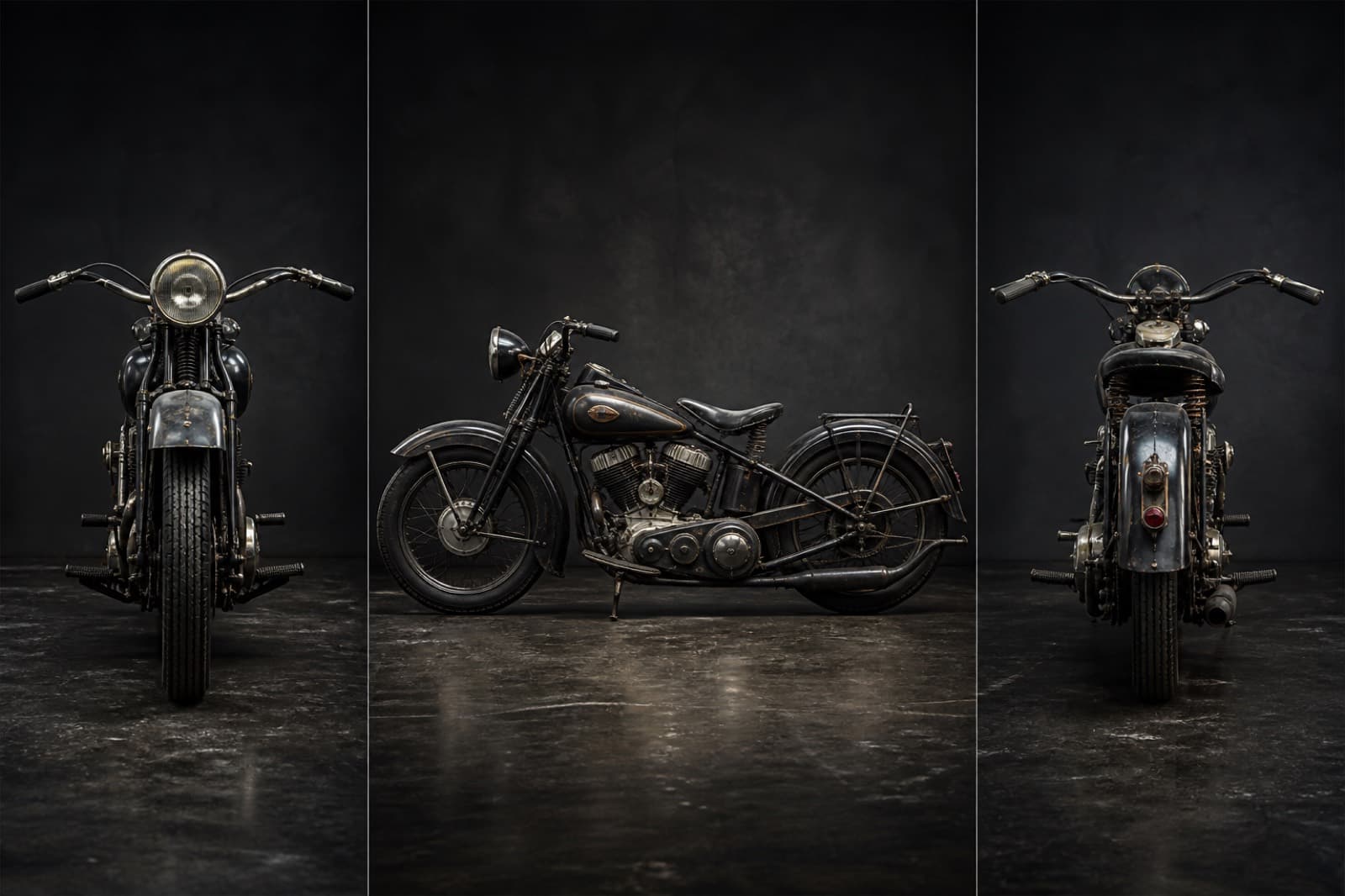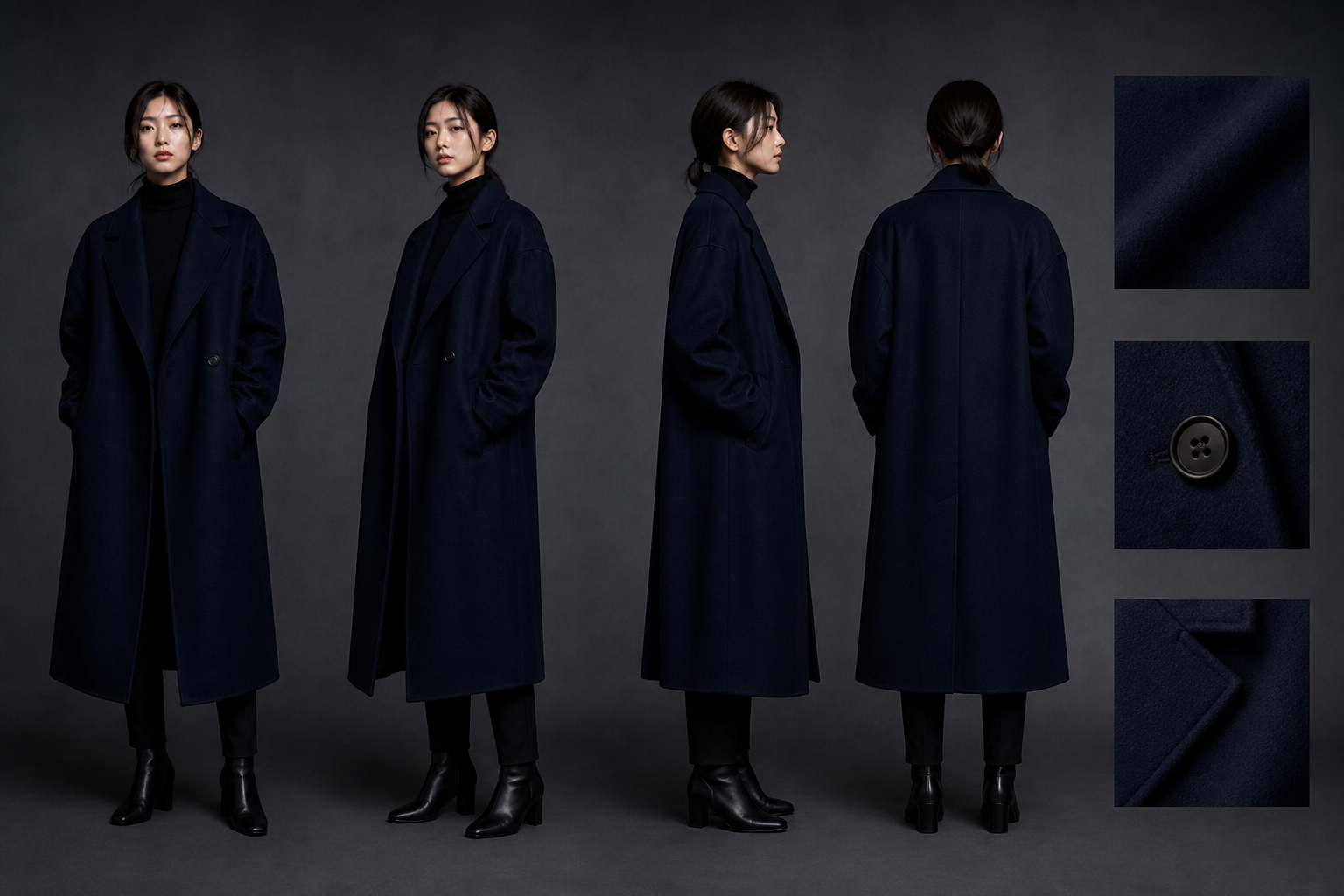
Front, side, back, and fabric details of one dark coat for a sheet.
Setup
Home / Features / Character Sheet
AI · creditsFull costume and body, clean backdrop.
Make a reusable character sheet for later boards and shots.
Click this button, then watch the right side
Sign in with credits to generate here
After you sign in, generated assets land in My Projects. Open that list anytime to find them.
Preview
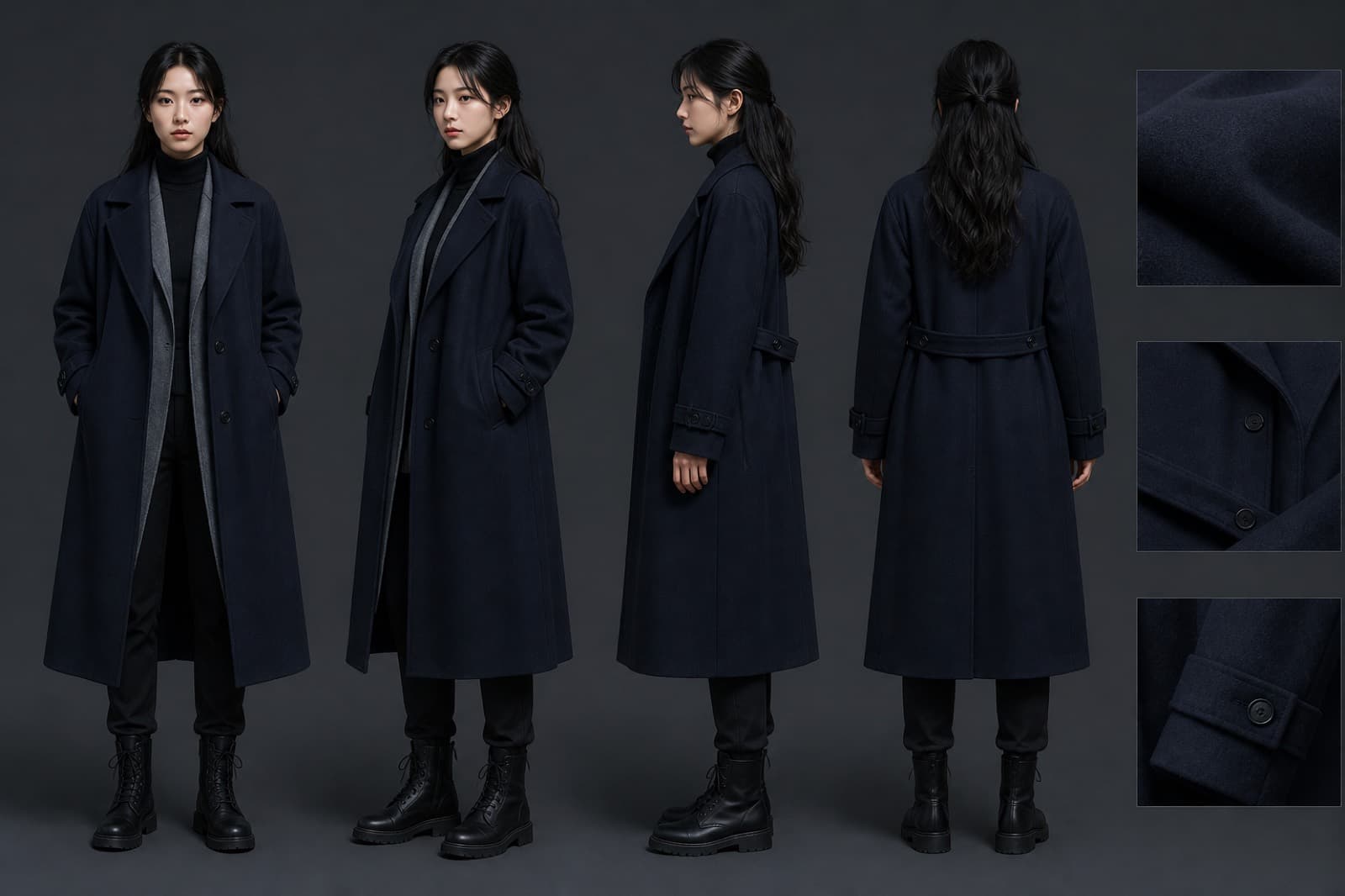
The result appears here
Samples sit under the bench. They are not your upload. Drag the handle on before-and-after pairs.
Front, side, back, and fabric details of one dark coat for a sheet.
People open Character Sheet to finish one still and take it with them.
01
Lock a character or set into a reusable sheet for later boards.
02
You need front, side, back, or details—not one mood still.
03
A team needs the same look. Make the sheet here first.
STEP 1
Upload a still that shows the look. Note the costume or set if you must lock it.
STEP 2
Read the credit estimate, then generate.
STEP 3
Download the sheet, or pin it to canvas or boards.
You can read the page and examples first. Generate asks you to sign in. An empty generate stays here.
The generate button shows the estimate. Image jobs default to the site model and one 2K still. Local crop and annotate cost nothing.
Signed-in results go to My Projects. Download here, or open My Projects later for the same files.
One clear still is enough. More angles and details make a steadier sheet.
Failed jobs are usually not charged. The button is an estimate; the ledger shows the successful charge.