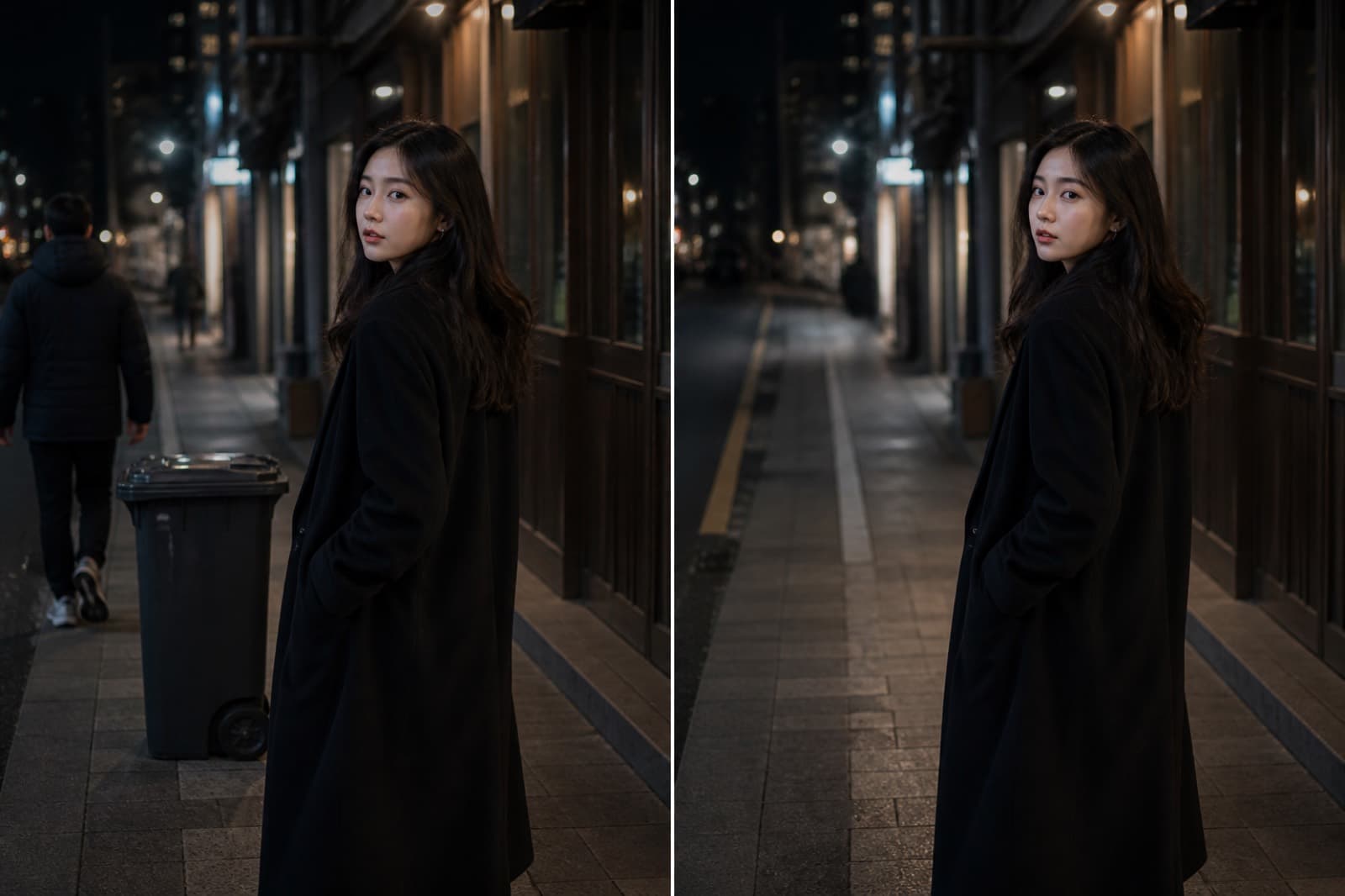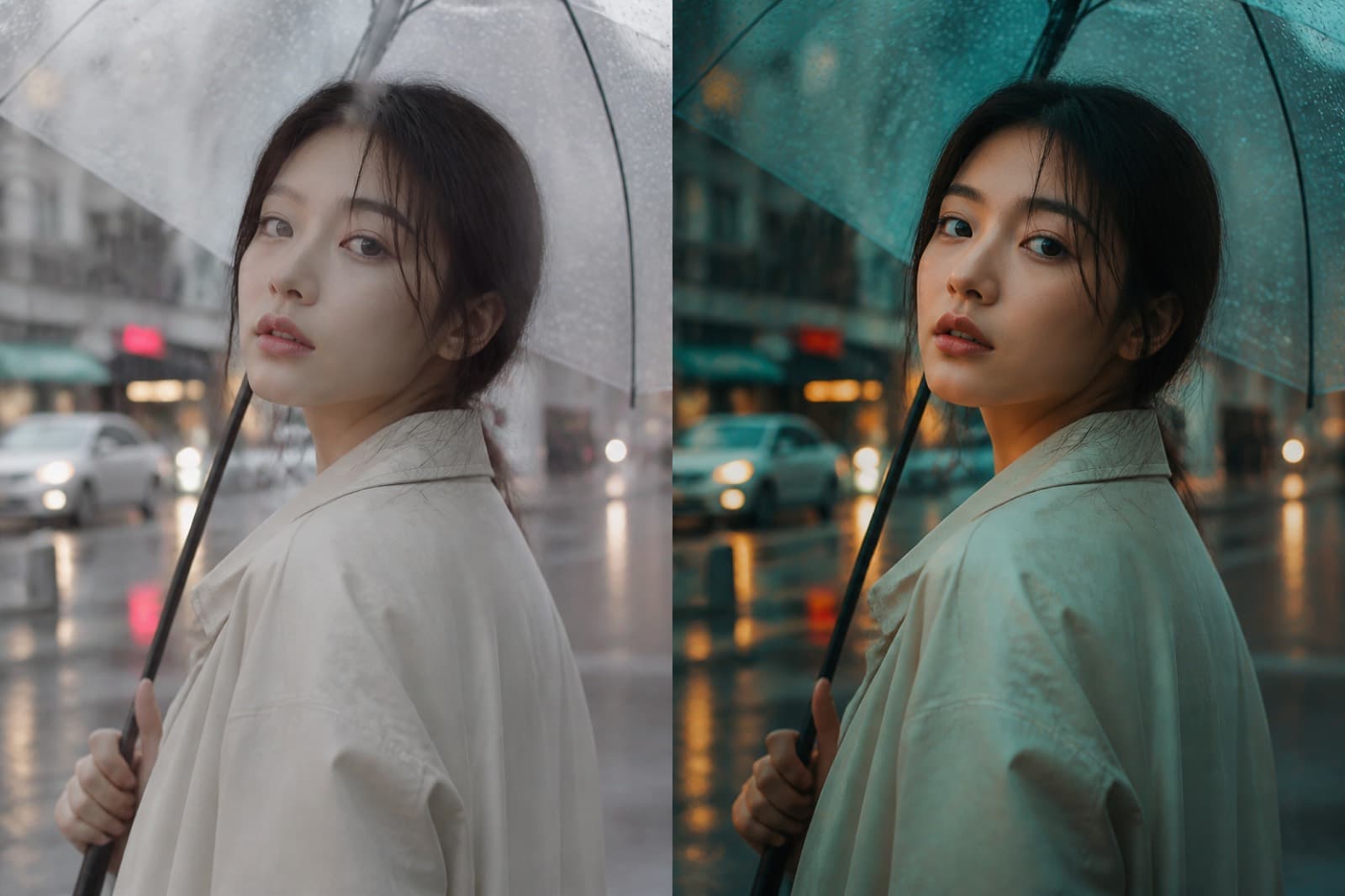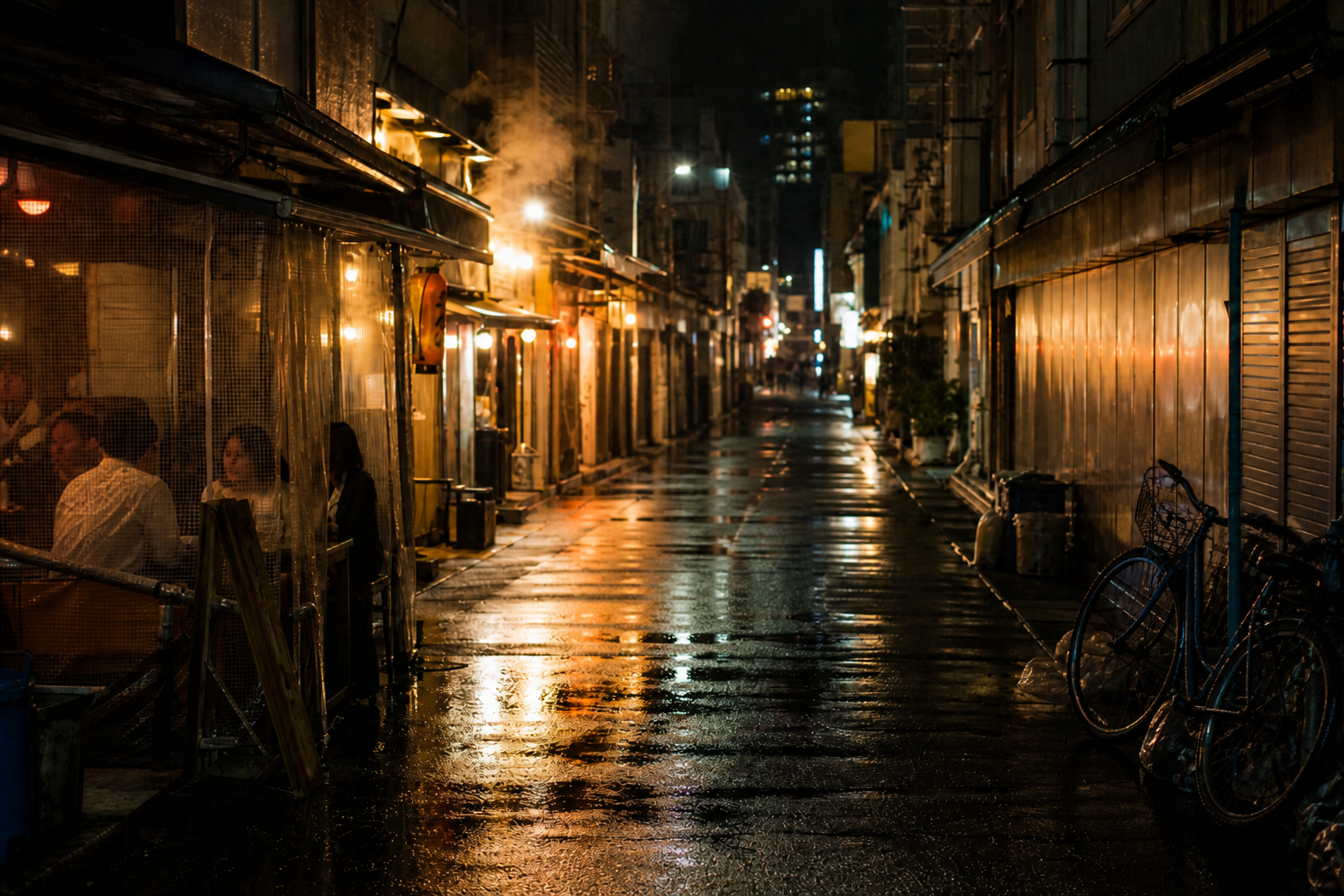
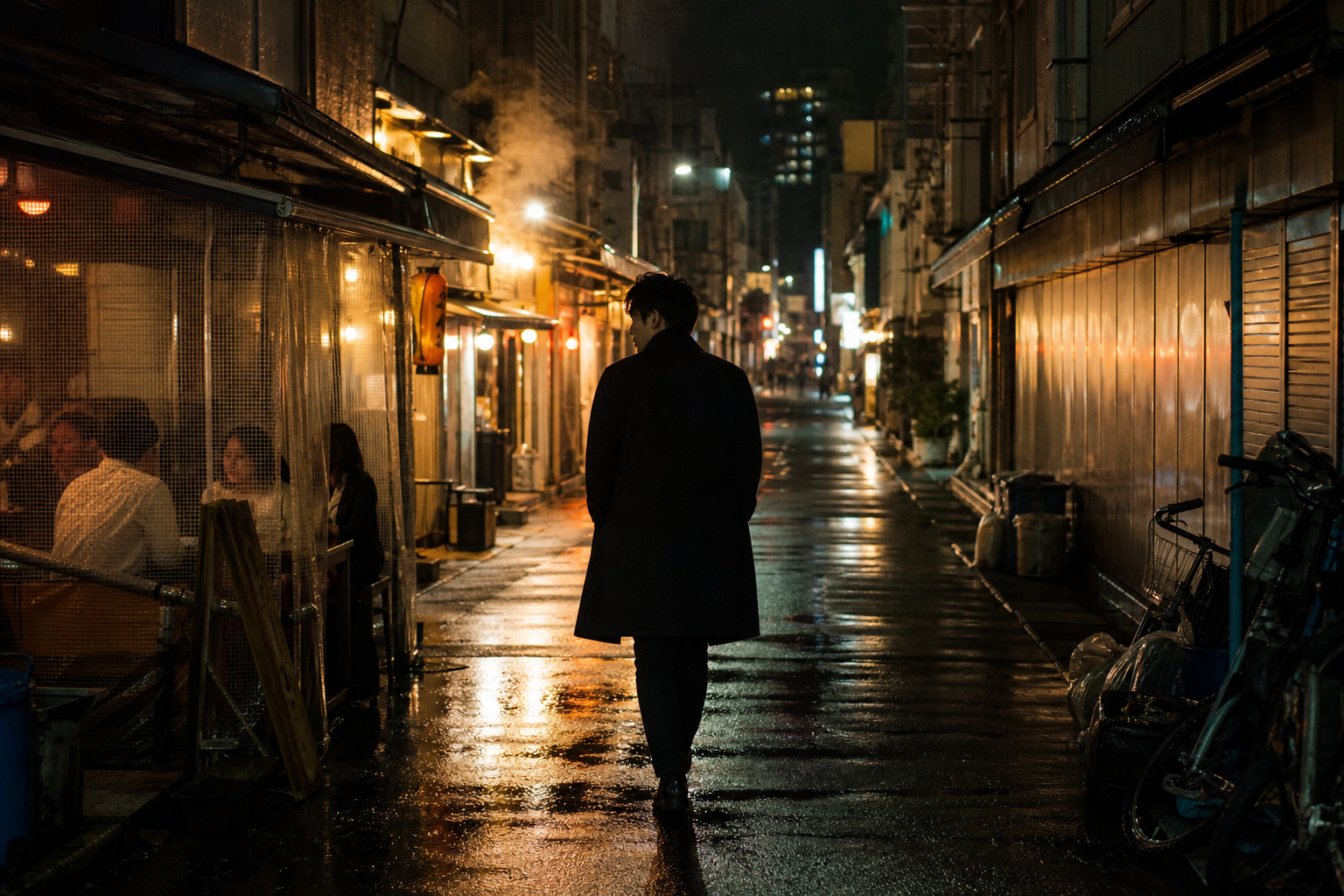
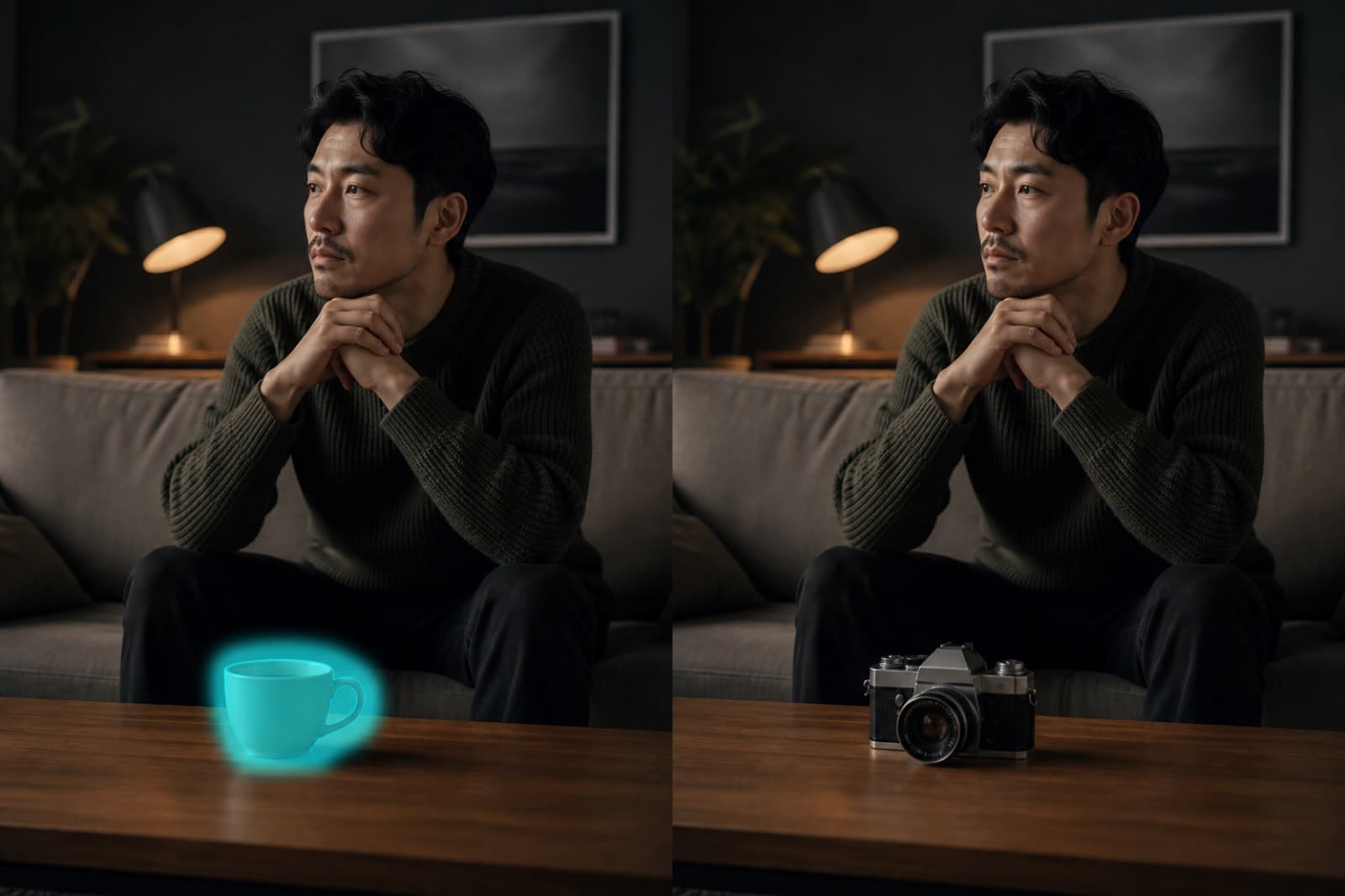
Drag the handle to compare before and after.
The walker in the alley becomes a bicycle on the wall. Lights stay.
Setup
Home / Features / Repaint Area
AI · creditsRepaint a brushed region from your note.
Change only the brushed patch—props or a local pose—without replacing the whole still.
Click this button, then watch the right side
Sign in with credits to generate here
After you sign in, generated assets land in My Projects. Open that list anytime to find them.
Preview
The result appears here
Samples sit under the bench. They are not your upload. Drag the handle on before-and-after pairs.
Drag the handle to compare before and after.
The walker in the alley becomes a bicycle on the wall. Lights stay.
People open Repaint Area to finish one still and take it with them.
01
A mark or stain is in the way. Run Repaint Area before boards.
02
The same still will feed sheets and shots. Clean it once.
03
There is no time to reshoot. Change this still and export.
STEP 1
Drop the still here. See the subject and the spot to change.
STEP 2
Brush, box, or crop on the right. Keep the mark close to what should change.
STEP 3
Read the credit estimate, then generate. Compare and download here.
You can read the page and examples first. Generate asks you to sign in. An empty generate stays here.
The generate button shows the estimate. Image jobs default to the site model and one 2K still. Local crop and annotate cost nothing.
Signed-in results go to My Projects. Download here, or open My Projects later for the same files.
Each tool does one job and keeps the frame when it can. Use repaint or canvas if you need a larger change.
Failed jobs are usually not charged. The button is an estimate; the ledger shows the successful charge.